Customizing Estimated Costs
As an administrator, you can customize how the Planning Activities feature works, for example by choosing whether users enter estimated costs as quarterly or total amounts.
Change Estimated Costs Options
To configure Estimated Costs options, follow these steps:
-
In Uptempo, click Activities in the navigation menu.
-
Click
 Settings: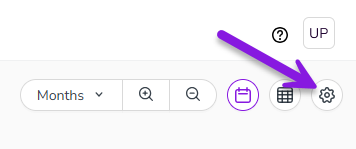
The Activity Configuration page opens.
-
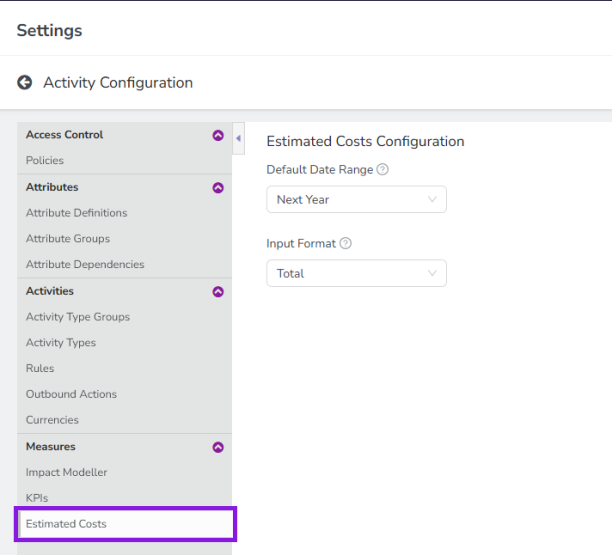
In the navigation menu, click Estimated Costs (in the Measures section):
-
Use the settings under Estimated Costs Configuration to customize how the Estimated Costs feature works in your Uptempo instance.
Note: See the section Configuration Options for details on how to configure these settings.
-
Click Save to apply your changes.
A notification is displayed to confirm that your changes have been applied.
You have successfully configured Estimated Costs options.
Configuration Options
The following options are available:
|
Setting Name |
Description |
Available Options |
|
Default Date Range |
Defines the date range to be used by default for estimated costs on activities that do not have in-market dates set. |
|
|
Input Format |
Sets how estimated cost amounts are entered and displayed. |
|
Warning
If you have already entered estimated costs into the system and change the Input Format, this can cause data loss.
If you change the Input Format setting from Quarterly to Total, existing quarterly amounts will be combined and saved as a single total amount.
This will permanently delete all separate quarterly amounts. These amounts will not be restored if you subsequently change the Input Format setting back to Quarterly.